
How to organize sleep and feeding in Kidzia
Use Daily routine to plan your day, and sleep and feeding trackers to record what actually happened. The plan is flexible; its times are not medical advice or mandatory feeding and sleep times.
Steps reviewed:
Open Daily routine from Home
Tap the Daily routine card. If you have not created a routine, choose Let’s start. For an existing plan, use Edit routine when you need to change it.
Check: Start with a simple plan that fits your day; you can change it later.
Link to this stepChoose your approach, times and review the plan
Setup has three steps: Approach, Times and Review. Choose to record what happens or organize a flexible day, and select a feeding type when shown. Set wake and bedtime, review events, then save the routine.
Check: During review you can edit or remove an event or add a feed or activity. Saving the plan does not record those events as completed.
Link to this stepRecord sleep that actually happened
Open All tracking from the routine, then Sleep. Choose Night sleep or Nap. Tap Fell asleep now at the start and Woke up now when your child wakes. For a completed sleep, use manual entry with a duration or start and end times.
Check: Do not start a new timer for a sleep that already ended. Check the saved time and duration afterwards.
Link to this stepLog breastfeeding
Open Feeding and choose Breastfeeding, then Left, Right or Both. Use the timer during the feed, or manual entry after it has finished. Save the record when entering it manually.
Check: End a running timer when the feed finishes. Simply opening the screen does not save a feed.
Link to this stepLog formula or expressed milk
Choose Formula, enter the amount actually consumed in ml and save the feed. For expressed breast milk, select Expressed and the expressed-milk feed option. The pumping option records milk you pumped.
Check: Keep consumed milk and pumped milk separate so your summaries stay clear.
Link to this stepReview and correct your records
Open View history in Sleep or Feeding, then open an entry to review its details and edit it if needed. Return to Daily routine and check each event’s status rather than assuming its planned time means it was recorded.
Check: Duplicate entries increase totals. Check the history before adding another copy or deleting an entry.
Link to this stepEnable routine reminders if useful
Turn on the reminder for each routine event option and allow Kidzia notifications in your phone settings. After changing a plan, check its saved times and reminders.
Check: Planned times are flexible organizational aids. Follow your child’s needs and clinician’s advice; do not delay a feed just because its planned time has not arrived.
Link to this step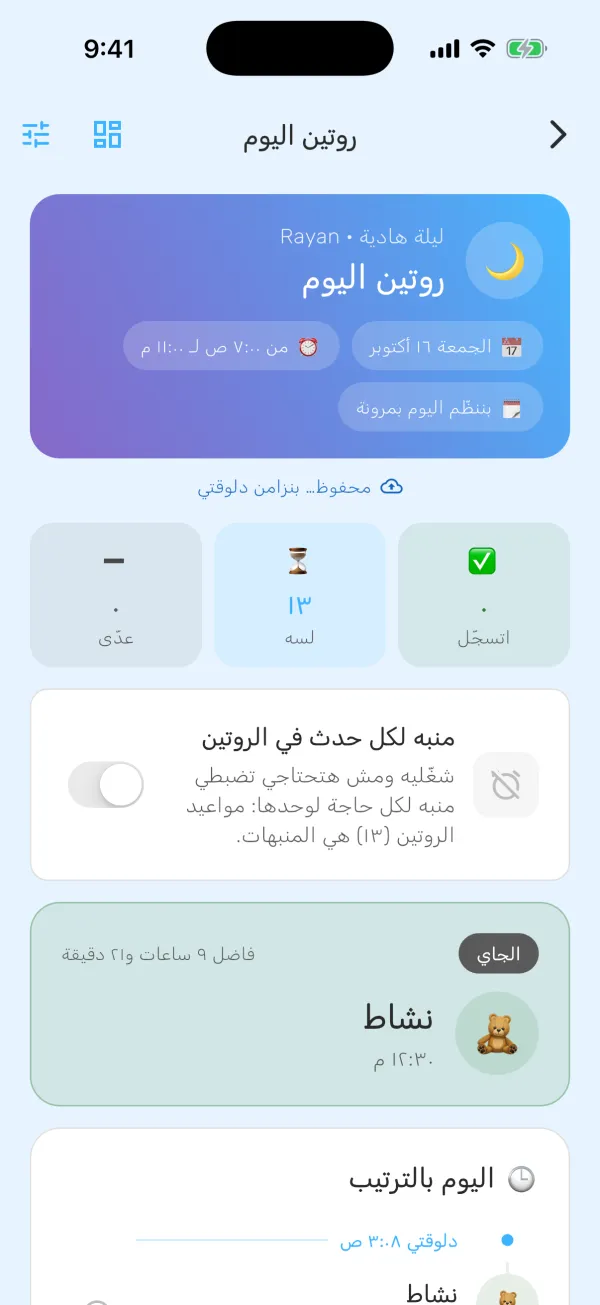
Common questions
What is the difference between a routine and a record?
The routine is your plan. A record describes what actually happened, including its time, duration or amount. An event appearing in the plan does not prove it was recorded or completed.
I forgot the timer. Should I start it now?
If the event has finished, use manual entry in Sleep or Feeding instead. Enter the duration or the start and end times, then check the saved record.
Why does the summary look different from what I remember?
Check the selected child and day, whether the entry was saved or its timer ended, and whether it is duplicated. For expressed milk, check whether you recorded a feed or a pumping session.
How do I find the trackers or fix missing reminders?
All tracking in the routine opens the tracking tools, including Sleep and Feeding. For reminders, check both the routine reminder switch and Kidzia’s notification permissions in your phone settings. Contact support if the problem continues.
A clearer step every day with Kidzia
Milestones, feeding guidance, sleep support, and hands-on activities all in one app.